
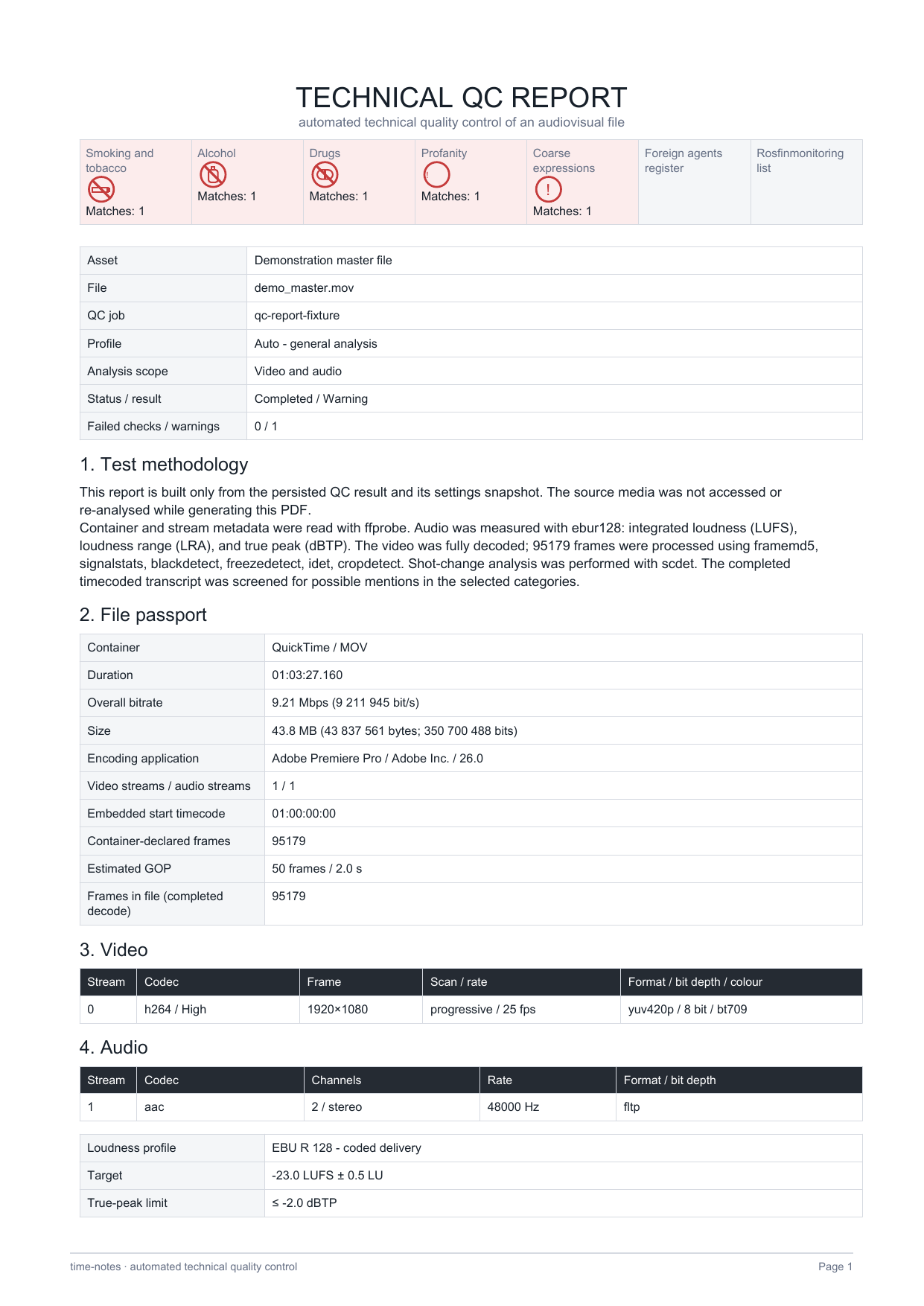
File passport
- Container, codecs, and streams
- File size and overall bitrate
- Resolution and frame rate
- Scan, bit depth, and colour
- Timecode, GOP, and encoding application
Automated QC (beta version) analyses technical video and audio parameters, marks possible issues with timecodes, and produces a structured report.
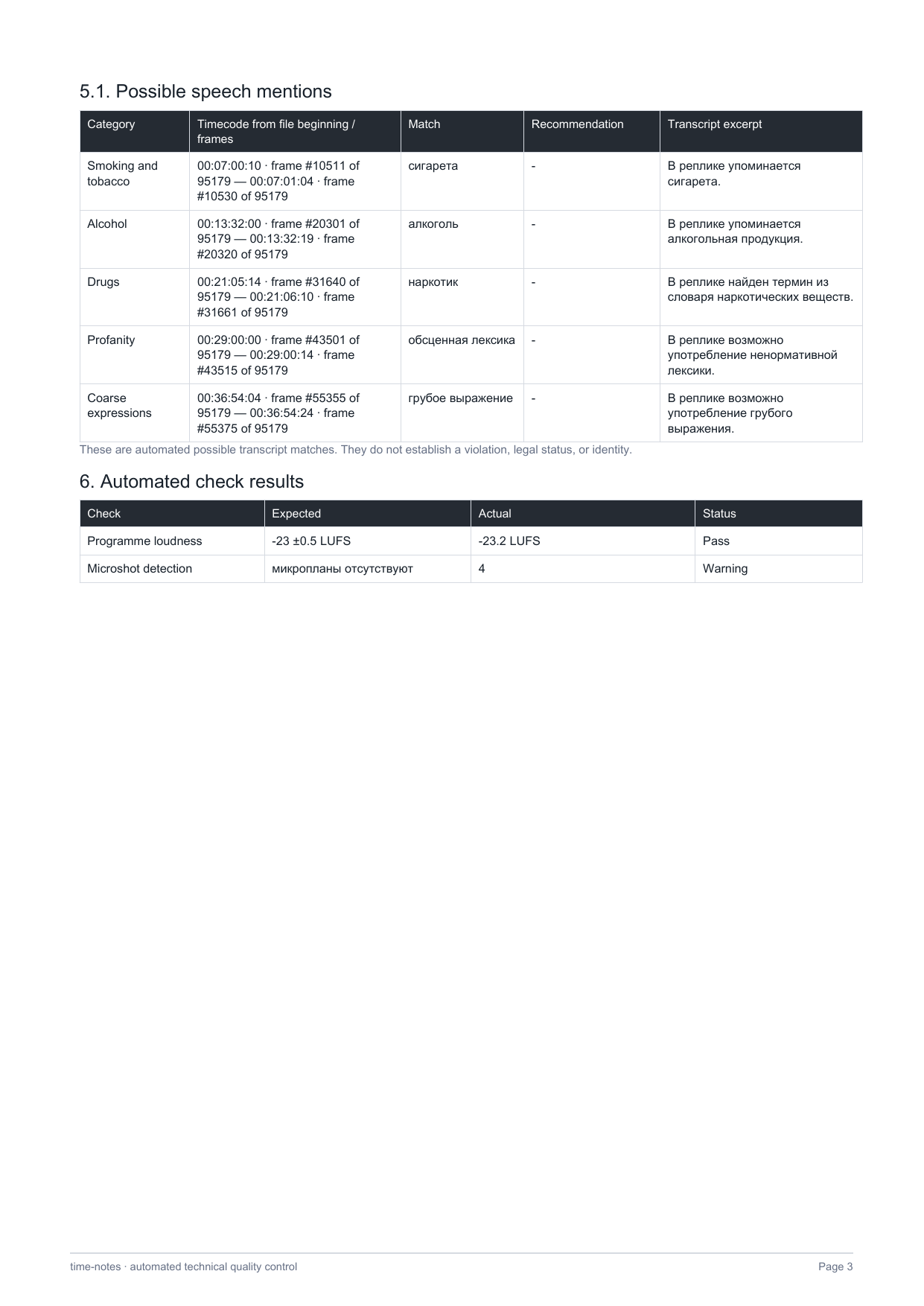
Time-Notes uses the transcript to flag possible matches with timecodes. A match is a prompt for manual review, not proof of a violation, identity, or legal status.
The terms checked in each dictionary category are available directly in the QC settings.
Open the video asset context menu and choose “Technical control”.
Choose automatic general analysis or an active requirements profile, then full analysis, video only, or audio only and any additional checks.
Accept the beta notice. If transcoding is still running, the QC job waits for it to finish.
Follow progress on the asset card, open the QC tab, and use the timecodes to jump to possible issues.
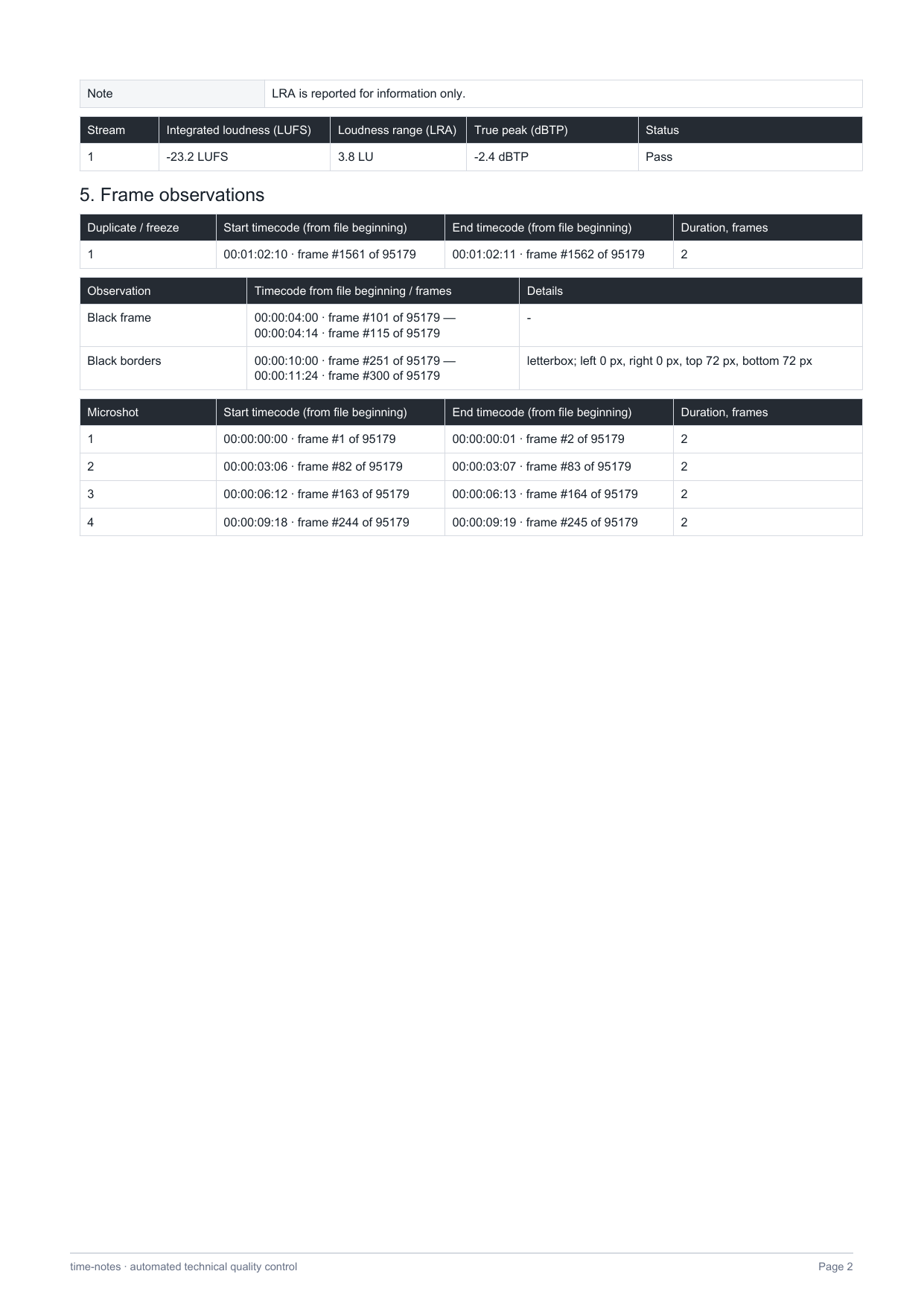
Save a PDF report with file details, measurements, check settings, and timecoded findings. General analysis reports technical observations; compliance with a specific broadcaster’s requirements depends on the selected configured profile.
The example below is anonymised demonstration data. The actual report depends on the selected profile, analysis scope, and findings.
Upload the master file, wait for video preparation, and start preliminary technical quality control.