Features

The complete video review workflow, visible in one place

Upload media, collect timestamped feedback, compare versions, and move comments into your editing application. Keep your team and client working on the same project.

One-minute overview · enable sound in the player
Project

Media, versions, and statuses in one library

The team sees the project structure and current files without searching through folders, chats, or transfers.
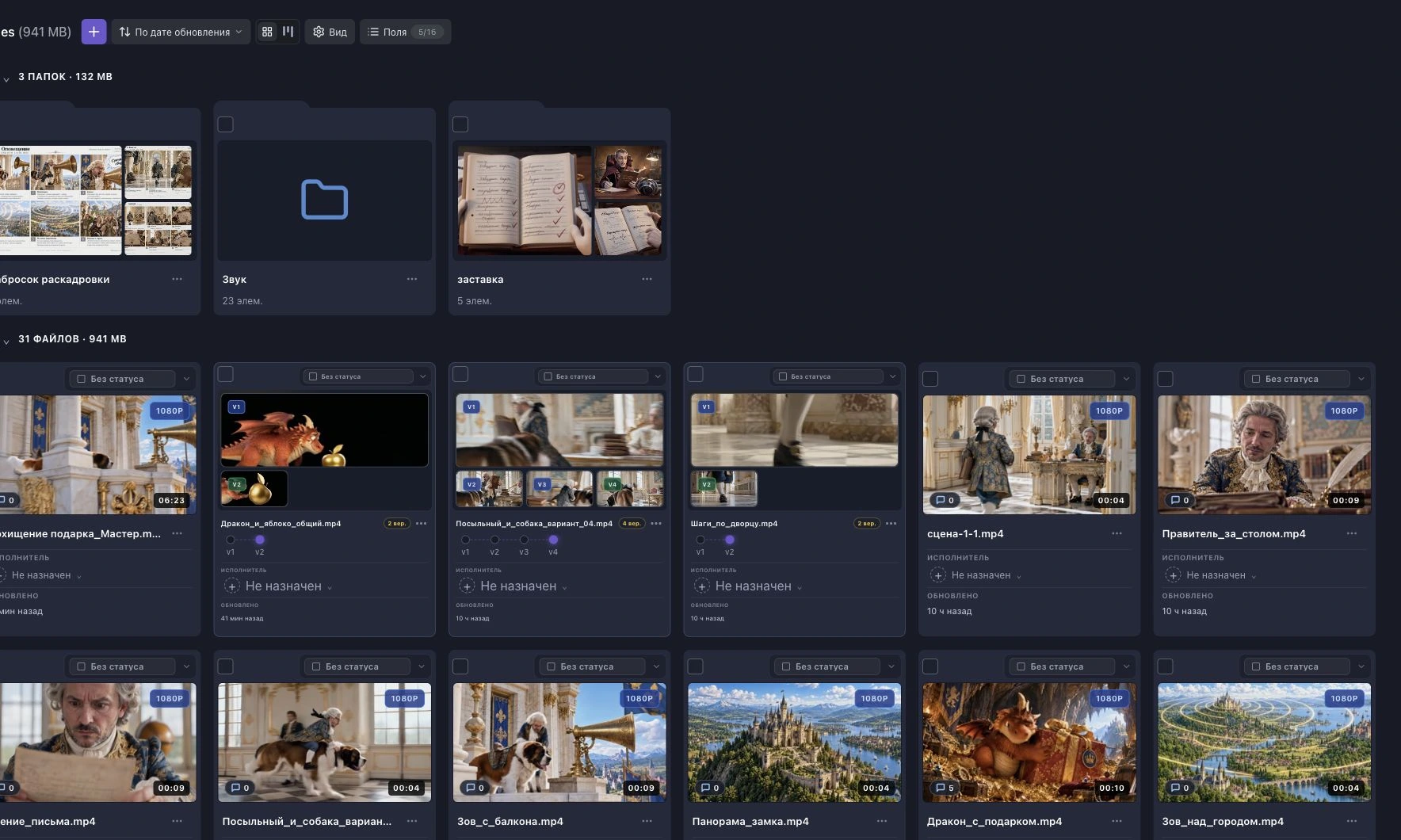
  • Upload video, audio, and images in the browser
  • Previews, statuses, and comments on every card
  • Folders, sorting, and views for larger projects
Time-Notes.ru project library with video files and statuses
Review

Feedback stays on the right frame instead of disappearing in chat

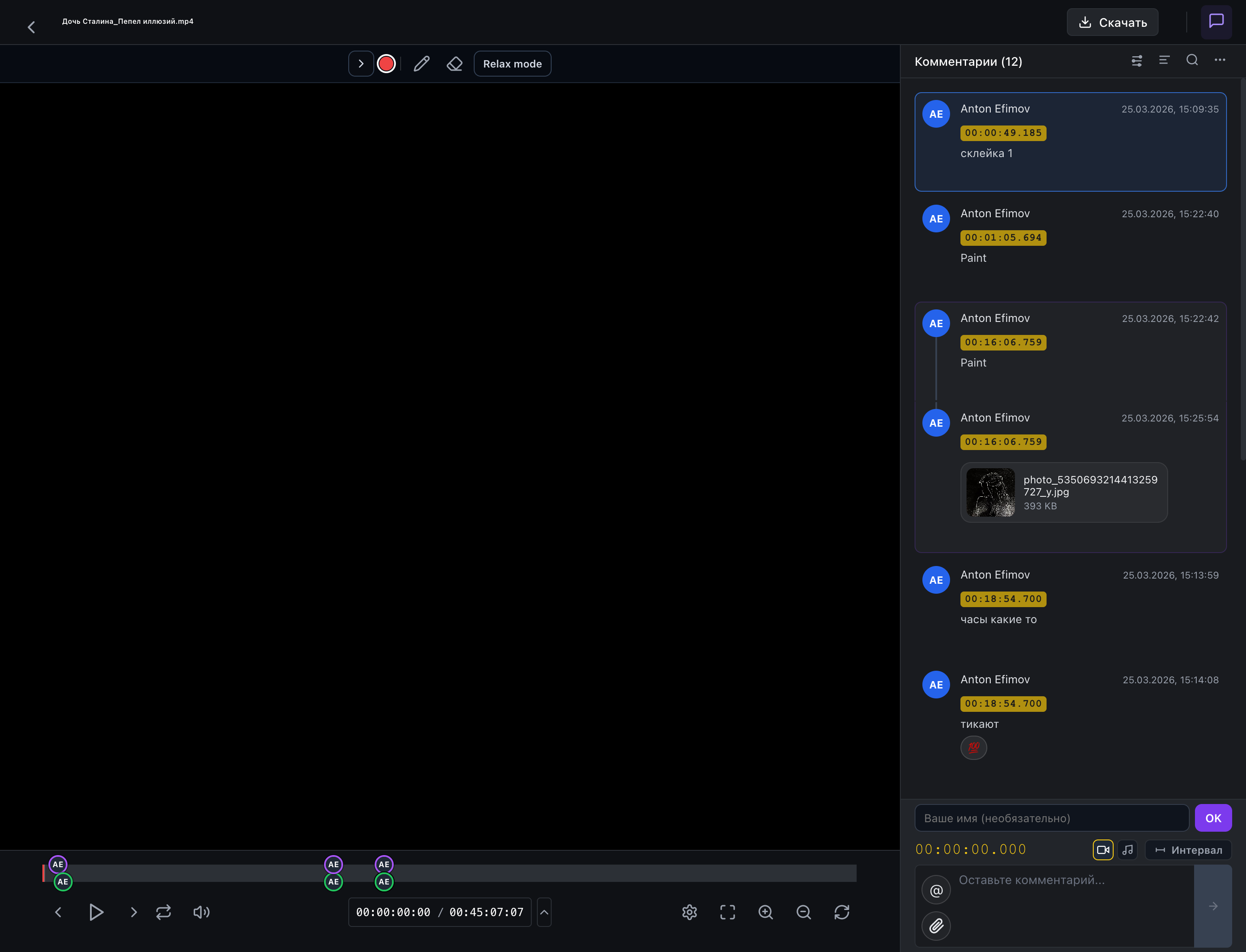
Open the cut and discuss it in one place. Every comment remains attached to an exact moment on the timeline.
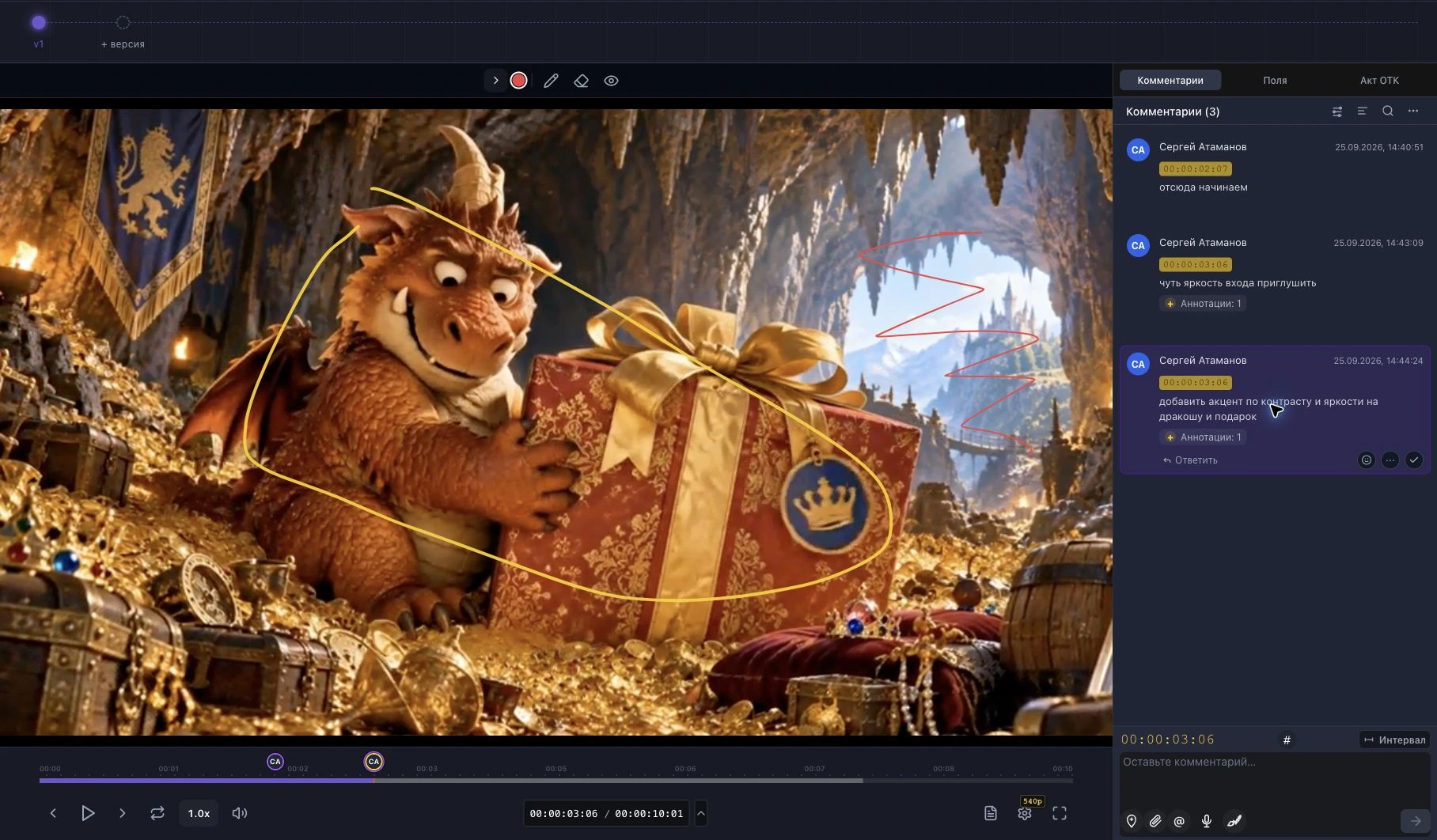
  • Timestamped and interval comments
  • Frame drawings, replies, and attachments
  • One feedback timeline for the team and client
Time-Notes.ru player with timeline and timestamped comments
Client link

Show the finished work without sending heavy files

The client opens one browser link and sees only what you chose to share. No application installation is required.
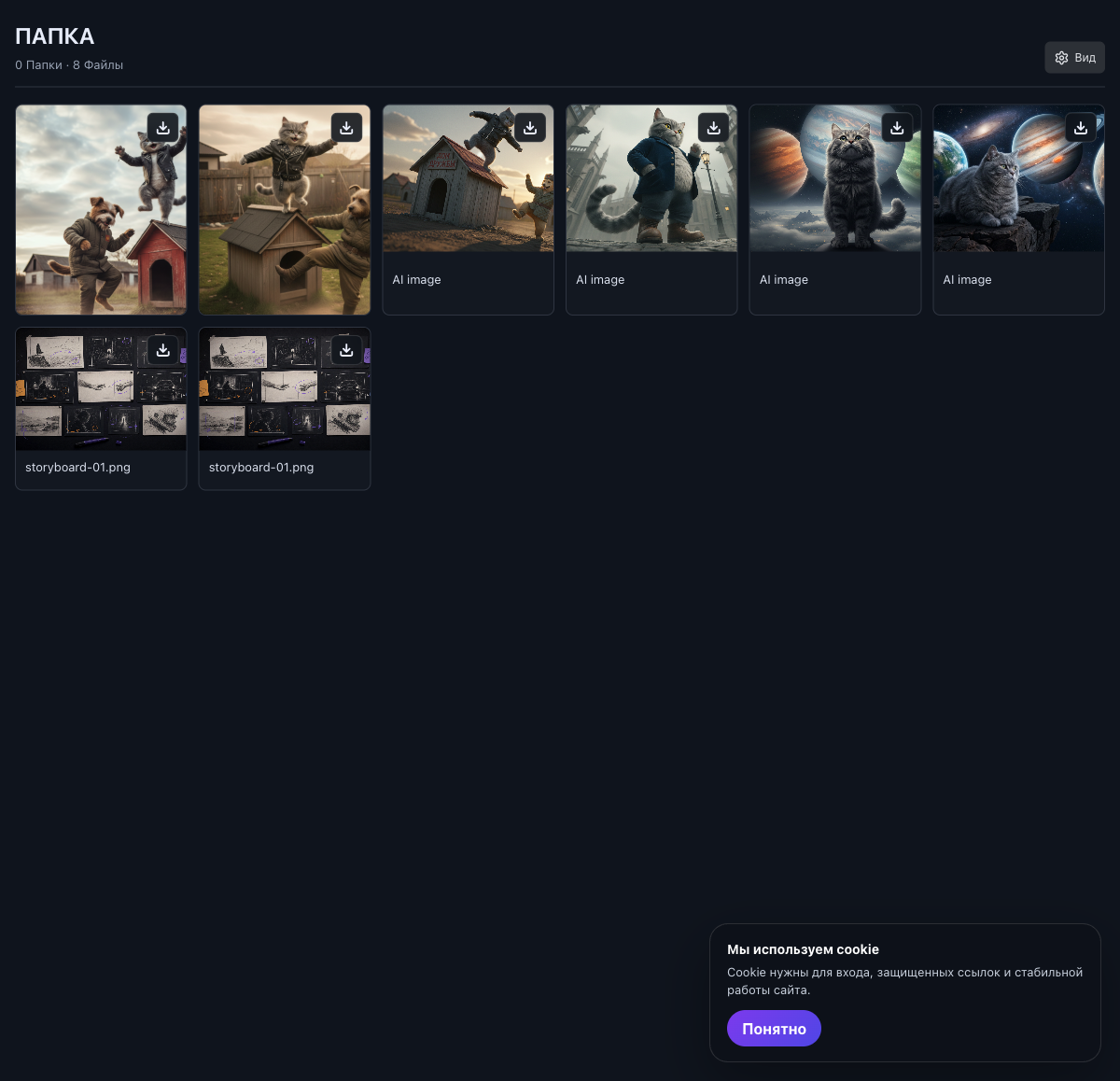
  • One link for a file or a collection
  • Passphrase, expiration, and download control
  • Review and approval without project access
In the same workflow

Tools that speed up the next step

From the first comment to final delivery, every additional tool stays inside the same workflow.

01

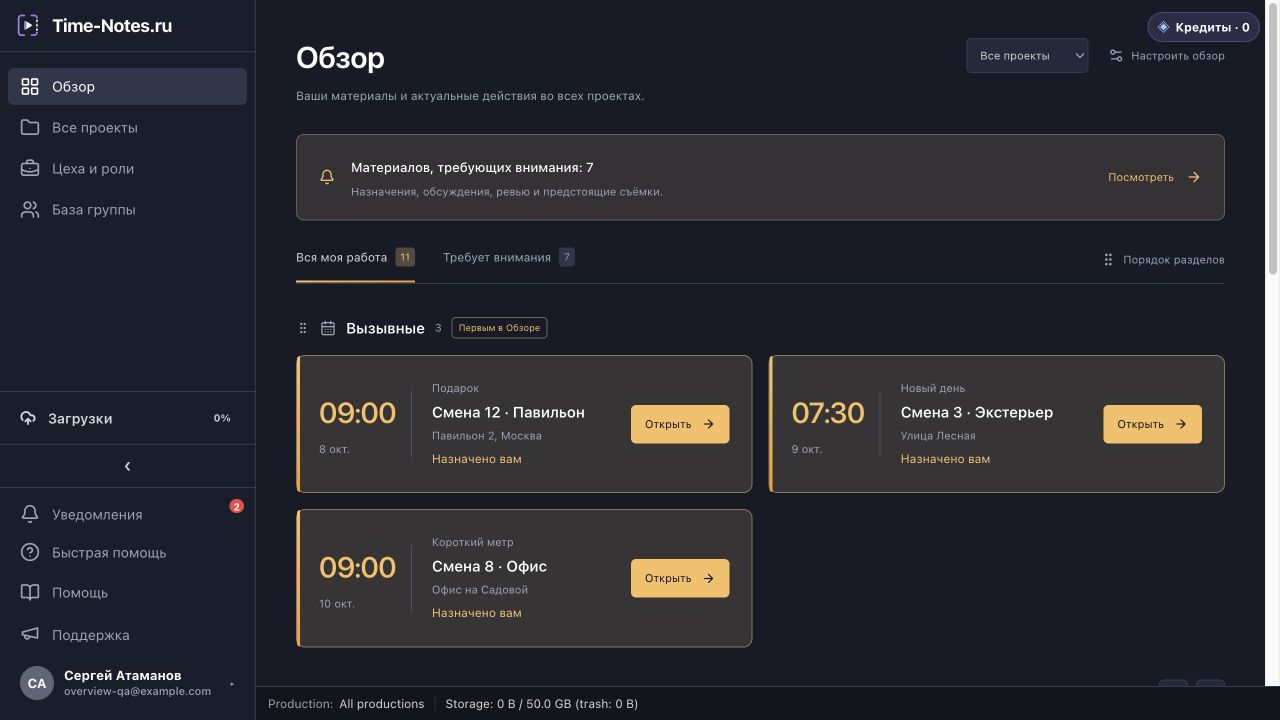
Overview, productions and projects

Open Overview to see call sheets, screenplay discussions and media for review across projects. Productions and folders help organise the work itself.

How to organise work
02

Version comparison

Upload a new version or add media from the project to a version stack. Compare two cuts side by side or with an overlay in one player.

Learn more
03

Transcription

Find dialogue in text and jump straight to the matching video or audio moment.

Learn more
04

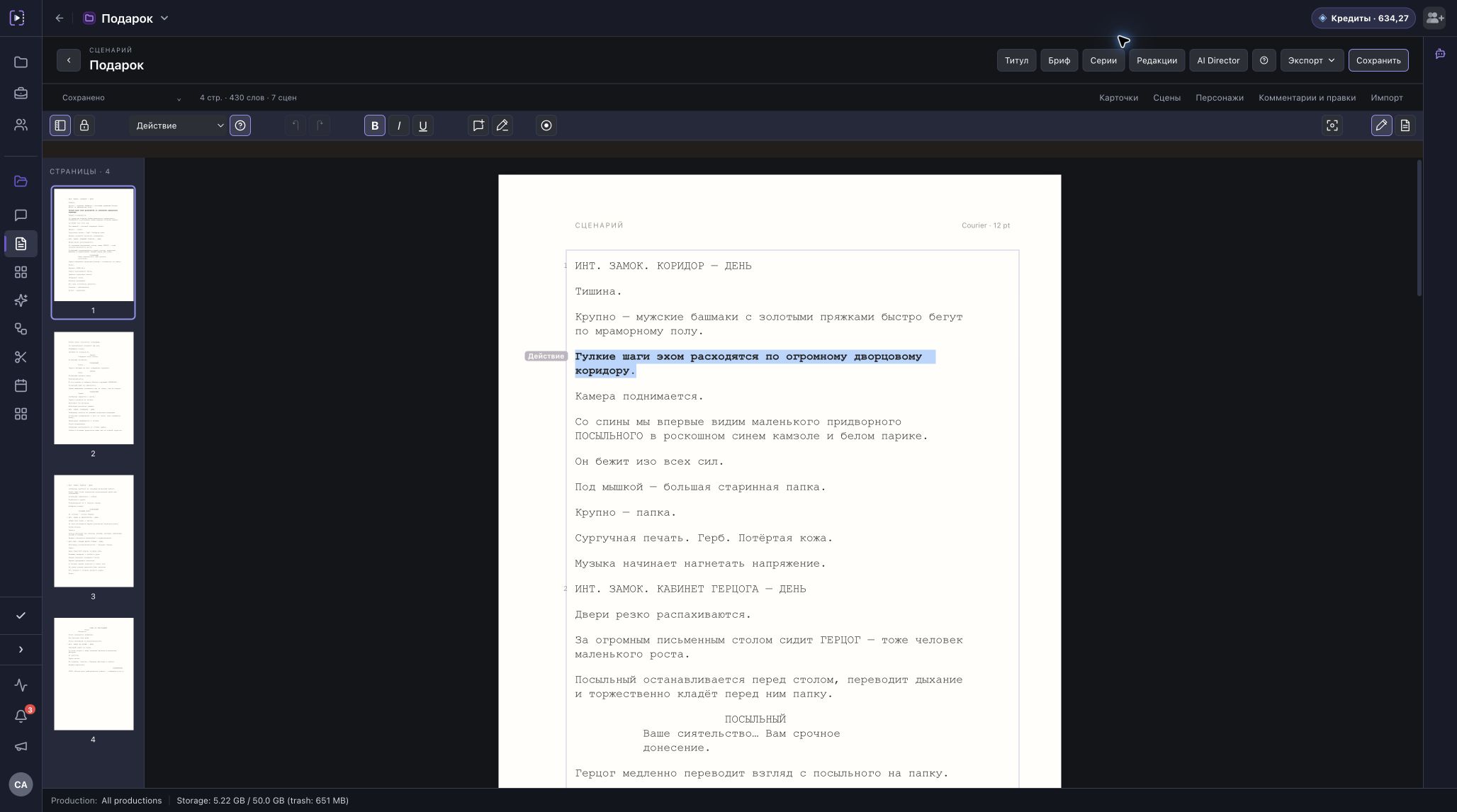
Screenplay editor

Choose a screenplay, play, or prose template. Plan acts, sequences, and beats above the page, keep notes, and write with your team.

Learn more
05

Roles and access

Give the team access only to the workspaces, projects, folders, and files they need.

Learn more
06

XML / EDL exchange

Turn comments into markers in Premiere Pro, Final Cut Pro and DaVinci Resolve. Bring Resolve markers back into review through EDL.

How to transfer feedback
07

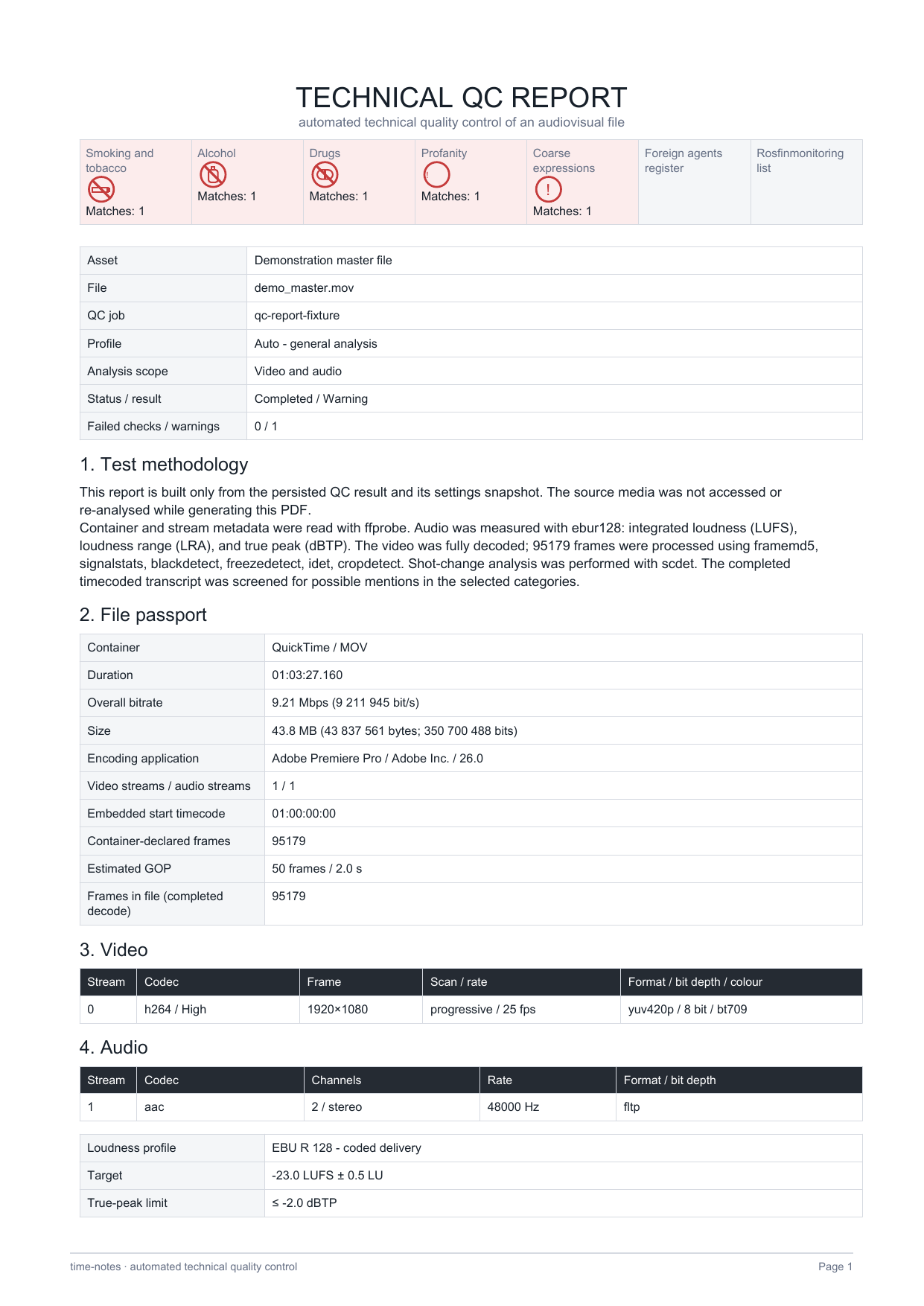
Automated QC for picture, sound, and speech

Beta version

Check technical parameters, loudness, and frame anomalies, then use the transcript to find mentions of smoking, alcohol, drugs, profanity, coarse language, and possible matches with Ministry of Justice and Rosfinmonitoring lists.

Learn more
XML / FCPXML / EDL

Export comments and exchange XML / EDL markers

Move review feedback onto your editing timeline. Premiere Pro uses Final Cut 7 XML, Final Cut Pro uses FCPXML, and DaVinci Resolve uses EDL. Import back into Time-Notes is available for DaVinci Resolve markers in EDL.

DaVinci Resolve

Time-Notes feedback in Resolve

  1. Open the media comment menu and download “DaVinci Resolve .EDL”. Set the frame rate and starting timecode to match your timeline.
  2. In the Media Pool, right-click the target timeline → Timelines → Import → Timeline Markers from EDL. Select the downloaded file.

Resolve markers in Time-Notes

  1. In the Media Pool, right-click the target timeline → Timelines → Export → Timeline Markers to EDL.
  2. Open the media in Time-Notes → comment menu → “Import DaVinci EDL markers”. Select the file, frame rate, and starting timecode. Markers appear as timecoded feedback.

Match the frame rate and starting timecode to keep positions aligned. Range marker durations are preserved.

Premiere Pro

Import the markers

  1. Open the media comment menu and download “Premiere Pro .xml”.
  2. In Premiere, choose File → Import and select the file. A new sequence with markers appears in the Project panel — double-click it to open.

Bring in your edit

  1. Select and copy the video and audio clips from your original sequence.
  2. Switch to the imported sequence, move the playhead to the beginning, and paste the clips. The markers stay on the ruler above your edit.

Match the frame rate and align the start of your edit with the media in Time-Notes. XML import creates a separate sequence.

Final Cut Pro

Open the marker project

  1. Open the media comment menu and download “Final Cut X .xml”.
  2. In Final Cut, choose File → Import → XML and open the imported project. A “Time-Notes — filename” layer spans the media above the primary storyline.

Move the layer into your project

  1. Select only the Time-Notes marker layer and copy it with ⌘C.
  2. In your working project, position the playhead at the start of the corresponding media and choose Edit → Paste as Connected Clip. The markers travel with the layer.

The transparent layer leaves your image visible and requires no extra templates. Match the frame rate and the start of the media.

TXT contains comment text, CSV is a review list for spreadsheets, and JSON transfers a comment package. CSV is not a direct marker import format for Premiere Pro.

Comments and export guide (Russian)
Try it on your project

Run the next feedback round without a chat thread

Upload the cut, send one link, and collect every comment in Time-Notes.ru.